How to Install SnapGPT (2 Minutes)
Getting started is fast. Here's the step-by-step:
Step 1: Install the Extension
- Chrome users: Install SnapGPT from the Chrome Web Store
- Firefox users: Install SnapGPT for Firefox
Click Add to Chrome (or Add to Firefox) and confirm the installation. The SnapGPT icon will appear in your browser toolbar. If you don't see it, click the puzzle piece icon in the top-right corner of your browser and pin SnapGPT for easy access.
Step 2: Create Your Free Account
- Click the SnapGPT icon in your toolbar
- Click Sign Up and enter your email and password
- Check your inbox for a verification email and click the link inside
- Sign in — you're ready to go
Note: You must verify your email before the extension will work. If you don't see the email, check your spam folder.
Step 3: Get Your First Answer Key
Once installed, navigate to any page with a question on it. You'll see a small 📸 floating button in the bottom-left corner of your screen. Click it — SnapGPT will screenshot the page and return the answer in seconds.
That's it. You now have an AI-powered answer key generator running in your browser.
How to Get Answers for Different Question Types
🔵 Multiple-Choice Questions
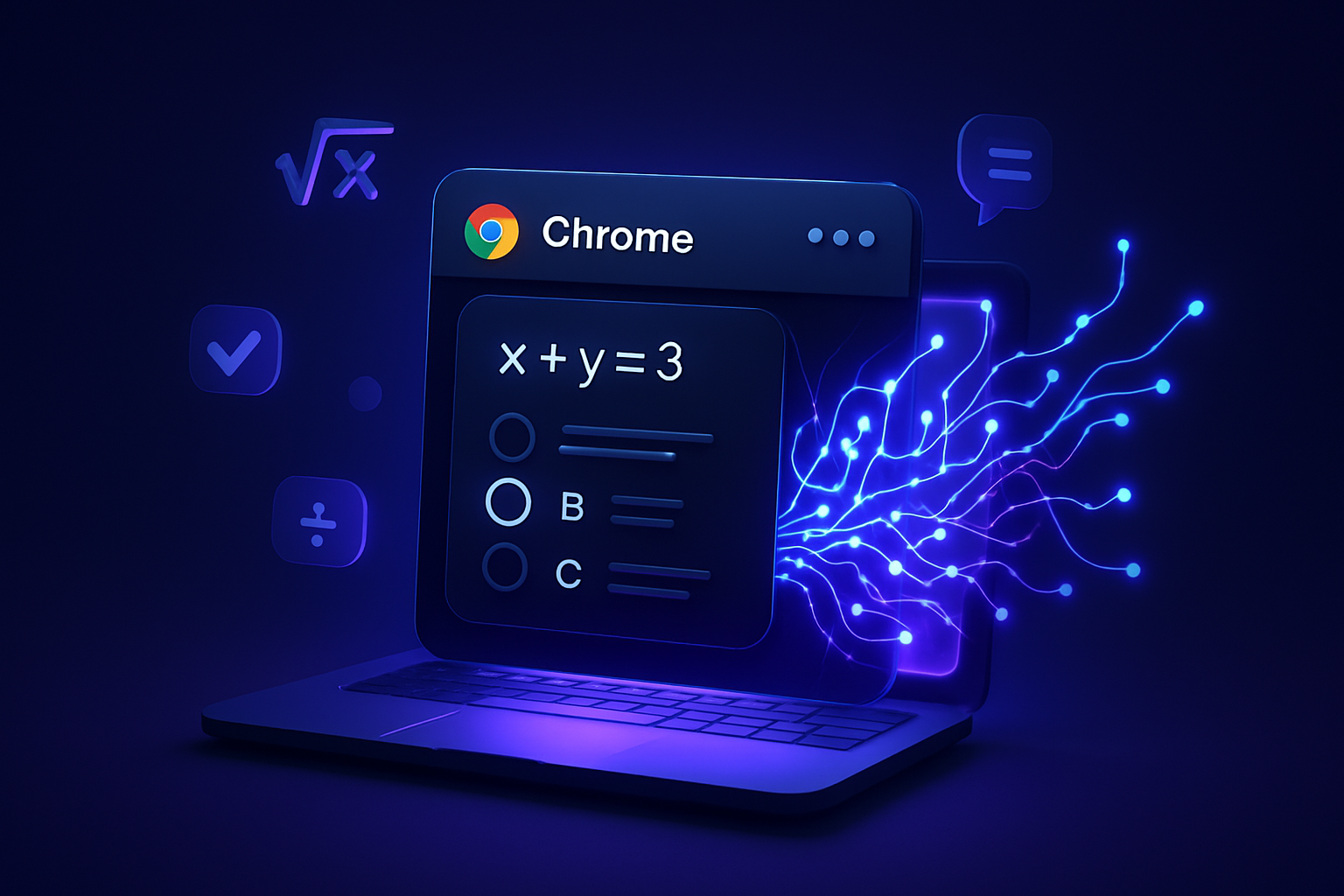
For multiple-choice questions, SnapGPT is lightning fast. Just click the floating button and the correct answer letter (e.g., B or A, C) appears in a popup at the bottom of your screen. No fluff, just the answer.
📝 Free-Response & Written Questions
For questions that require a written answer, hold Ctrl (Windows) or Cmd (Mac) while clicking the floating button. This activates Smart Scan, which streams a full written response in real time — perfect for fill-in-the-blank, short answer, or essay questions.
📄 Long Questions That Don't Fit on One Screen
Some questions are too long to capture in a single screenshot. Use Multi-Screenshot Mode:
- Hold Alt (Windows) or Option (Mac) and click the button to capture the first part
- Scroll down and Alt/Option+Click again to capture more
- Capture up to 3 screenshots total
- Click the button normally to send them all to the AI at once
The AI reads all your screenshots together and gives you one complete answer.
🔍 Specific Area of the Page
If there are multiple questions on screen and you only want one answered, hold Shift and click the floating button. A selection overlay appears — drag to draw a box around just the question you want. SnapGPT will only analyze that region.
Staying Discreet: Subtle Mode
If you want SnapGPT to be less visible while you're using it, enable Subtle Mode:
- Click the SnapGPT icon → go to the Appearance tab
- Toggle on Subtle Mode
This unlocks two powerful stealth features:
- Invisible Button: The floating button becomes completely transparent — it's still there and still works, you just can't see it. Use the keyboard shortcut Alt+Shift+X (Mac: Option+Shift+X) to trigger it without clicking anything visible.
- Answer in URL Bar: Instead of a popup, your answer appears briefly in the browser's address bar (e.g.,
#ans:B). It disappears automatically after a few seconds.
These features make SnapGPT one of the most discreet answer key tools available.
Using the AI Chat for Homework Help
Beyond instant answer keys, SnapGPT includes a full AI chatbot here for deeper homework help. You can:
- Ask follow-up questions about any topic
- Upload images of problems for analysis
- Get step-by-step explanations with math rendering
- Use web search for up-to-date information
- Choose between AI models including Claude Sonnet 4.6, GPT-5.4, and SnapGPT's own uncensored model
The chat is available in any browser — you don't even need the extension installed to use it.
SnapGPT Plans & Pricing
| Plan | Price | Requests/Day |
|---|---|---|
| Free | $0 forever | 5 requests + 5 chat messages |
| Plus (Weekly) | $3.99/week | Unlimited |
| Plus (Monthly) | $9.99/month | Unlimited |
| Plus (Annual) | $7.49/month | Unlimited |
The free plan is a great way to try SnapGPT with no commitment. When you're ready for unlimited answer keys, check out SnapGPT Plus pricing — the annual plan saves you 57% compared to weekly billing.
Keyboard Shortcuts Cheat Sheet
| Shortcut | What It Does |
|---|---|
| Alt+Shift+X (Windows) / Option+Shift+X (Mac) | Full-page screenshot |
| Shift+Click the button | Area selection mode |
| Ctrl+Click (Windows) / Cmd+Click (Mac) | Force full written Smart Scan |
| Alt+Click (Windows) / Option+Click (Mac) | Add to multi-screenshot queue |
| Esc | Cancel area selection |
Stop Searching for Answer Keys — Let AI Do It
Manually searching for answer keys is slow, unreliable, and often fruitless. SnapGPT gives you an instant AI-generated answer key for any question on your screen, on any website, in any subject.
Install SnapGPT free today and get your first 5 answers at no cost — no credit card required.
👉 Install SnapGPT for Chrome | View Plans & Pricing | Try the AI Chat