The Free Canvas Hack Extension Students Are Using Right Now
You've got a Canvas quiz open. You're stuck. You don't want to switch tabs, copy-paste into ChatGPT, or risk Canvas flagging anything suspicious. You just want an answer — fast, discreet, and free.
That's exactly what SnapGPT is built for. It's a free Chrome and Firefox extension that reads your screen, analyzes the question, and delivers an AI-powered answer in seconds — without ever leaving the page.
Here's everything you need to know to get it installed and running in under 2 minutes.
How to Install SnapGPT (Free) in 2 Minutes
Installing SnapGPT takes less time than reading this sentence twice. Here's how:
Step 1: Add to Chrome (or Firefox)
- Chrome: Go to the Chrome Web Store and click Add to Chrome.
- Firefox: Visit snapgpt.me and use the Firefox install link.
- Click Add Extension when prompted.
Step 2: Create Your Free Account
- Click the SnapGPT icon in your browser toolbar (top right — it looks like a puzzle piece if you haven't pinned it yet).
- Click Sign Up and enter your email and a password.
- Check your inbox for a verification email and click the link inside.
- Sign in — you're done.
Free plan includes: 5 quiz requests per day + 5 AI chat messages. No credit card needed. Ever.
Step 3: Pin It for Easy Access
Click the puzzle piece icon in your Chrome toolbar, find SnapGPT in the list, and click the pin icon. This keeps the SnapGPT icon always visible so you can access settings quickly.
How to Use SnapGPT on a Canvas Quiz
Once installed, using SnapGPT on Canvas is dead simple:
- Open your Canvas quiz like normal.
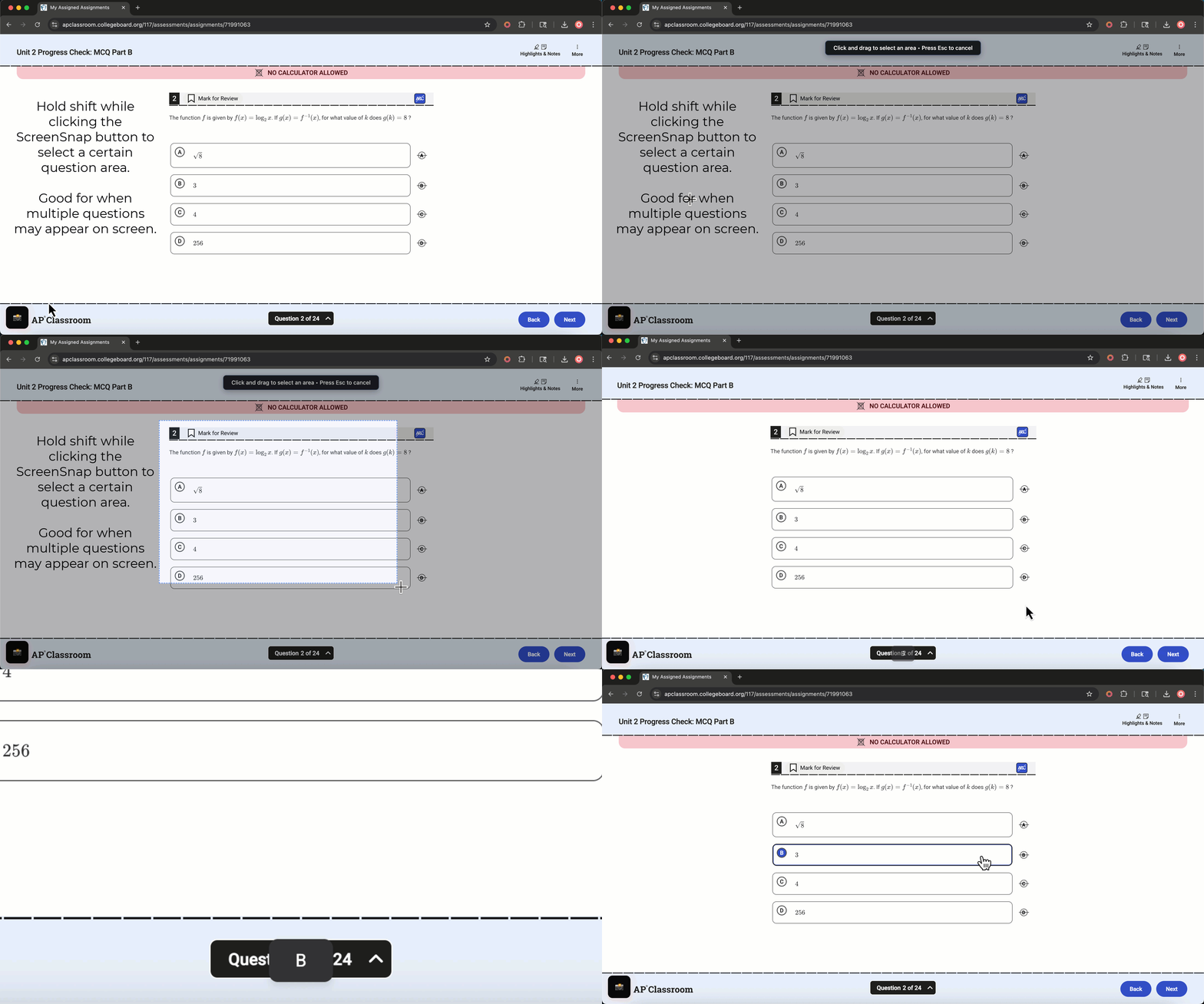
- Click the floating 📸 button in the bottom-left corner of the page — OR press
Alt+Shift+X(Windows) /Option+Shift+X(Mac). - SnapGPT takes a screenshot, analyzes the question, and displays the answer in a small popup at the bottom of your screen.
- For multiple choice: you'll see the answer letter (e.g., C).
- For written questions: a full response streams in a floating window you can copy with one click.
That's it. No switching tabs. No copy-pasting questions into ChatGPT. No risk of Canvas flagging a tab change.
Want to see this in action on a real quiz? Read our full walkthrough: How to Cheat on a Canvas Quiz.
🕵️ Keeping It Discreet: Subtle Mode
This is where SnapGPT really separates itself from every other tool out there. It has a built-in Subtle Mode designed specifically for situations where you need to be invisible.
How to Enable Subtle Mode
- Click the SnapGPT icon in your toolbar.
- Go to the Appearance tab in settings.
- Toggle on Subtle Mode.
This unlocks two powerful options:
👻 Invisible Button
Enable Transparent Button and the floating 📸 button becomes completely invisible — zero opacity. It's still there, it still works, you just can't see it. Use the keyboard shortcut Alt+Shift+X to trigger it without ever touching the screen.
🔗 Answer in URL Bar
Enable Answer in URL Bar and instead of a popup appearing on screen, the answer shows up briefly in your browser's address bar — like https://canvas.edu/quiz#ans:B. It disappears automatically after a few seconds. No popup. No visible AI tool. Just a quiet answer in a place no one is looking.
For a full breakdown of how to finish a 10-question quiz in under 2 minutes using these features, check out Use SnapGPT on Any Quiz in Under 2 Minutes.
Bonus: Area Selection for Tricky Layouts
Canvas sometimes puts multiple questions on one page, or has complex layouts. Instead of screenshotting the whole page, you can select just the question you want:
- Hold
Shiftand click the floating button. - A dark overlay appears — click and drag to draw a box around just the question.
- Release — SnapGPT analyzes only that region.
This is especially useful when there are multiple questions visible at once and you don't want the AI to get confused.
Free vs. Plus: What Do You Actually Get for Free?
The free plan is genuinely useful — here's what's included:
| Feature | Free | Plus |
|---|---|---|
| Daily Quiz Requests | 5/day | Unlimited |
| AI Chat Messages | 5/day | Unlimited |
| Subtle Mode | ✅ | ✅ |
| Invisible Button | ✅ | ✅ |
| Answer in URL Bar | ✅ | ✅ |
| Smart Scan (written answers) | ✅ | ✅ |
| AI Study Sets & Flashcards | ❌ | ✅ |
| Unlimited Explanations | ❌ | ✅ |
For most students, 5 free requests per day is enough to get through a quiz. If you need more, Plus starts at just $3.99/week — and you can cancel anytime.
Why SnapGPT Is the Best Free Canvas Hack Extension
There are a lot of tools claiming to help with Canvas quizzes. Most of them require you to copy-paste questions, switch tabs, or use a separate website. SnapGPT is different because:
- It works visually — it reads your screen like a human, not by accessing Canvas data
- It never switches tabs — no risk of Canvas detecting focus changes
- It's completely invisible when Subtle Mode is on
- It's free to start — no credit card, no trial period
- It works on any platform — not just Canvas
If you're curious how it stacks up against other AI tools, check out our Answers AI Alternative comparison.
Install SnapGPT Free Right Now
You've read enough. Here's what to do:
- Install SnapGPT from the Chrome Web Store
- Create your free account (takes 60 seconds)
- Open your next Canvas quiz and press
Alt+Shift+X
That's the whole thing. The best free Canvas hack extension is already waiting for you — go install it.