Step-by-Step: How to Use SnapGPT During a Quiz
Getting set up takes less than 30 seconds. Here's exactly how it works:
Step 1: Install SnapGPT
Head to the Chrome Web Store and install the SnapGPT extension. It's free to get started and installs like any other Chrome extension.
Step 2: Enable Subtle Mode
Once installed, open the SnapGPT settings and turn on Subtle Mode. This minimizes any visible UI so the extension stays discreet while you work.
Step 3: Use the Keyboard Shortcut
When you're on a quiz question and need help, press Alt + Shift + X (customizable). This activates the area-select tool — no clicking away from the page, no new tabs.
Step 4: Select Your Question
Drag to highlight the quiz question or problem on your screen. SnapGPT captures just that region.
Step 5: Get Your Answer
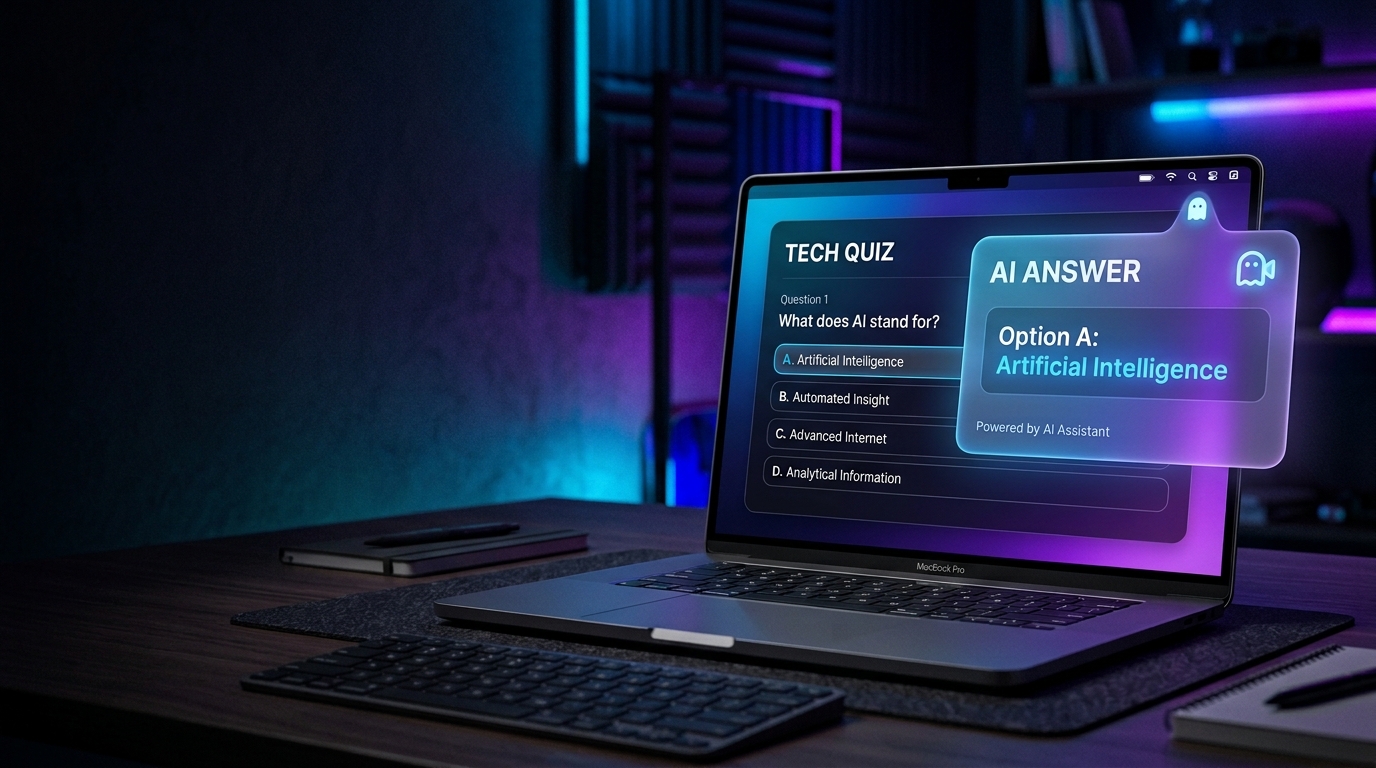
Within seconds, an AI-generated explanation appears. You can configure output to show in a minimal overlay or directly in the URL bar — keeping everything contained to your current window.
That's it. You never left the page.
Why This Approach Actually Works
Let's talk about why this method is fundamentally different from everything else:
No tab switching — The single biggest trigger for Canvas focus logs is completely eliminated.
No page navigation — Your browser stays locked on the quiz URL the entire time.
Speed — Answers come back in seconds, not the 30–60 seconds it takes to Google something and read through results.
Minimal footprint — With Subtle Mode enabled, there's no flashy UI, no pop-up windows, nothing that looks out of place on your screen.
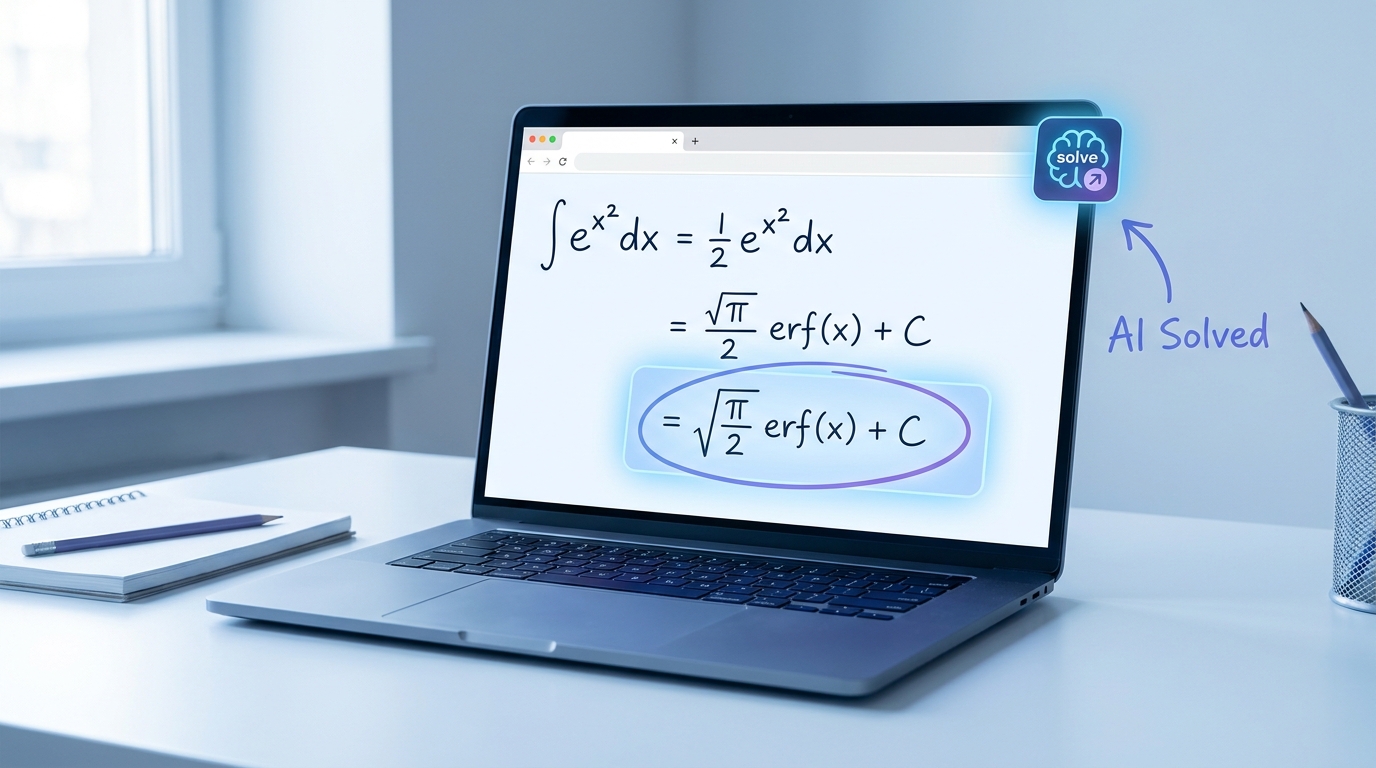
Works on any content — Multiple choice, short answer, math problems, science diagrams — if it's on your screen, SnapGPT can analyze it.
Where Students Are Using It
SnapGPT's screenshot-based AI assistance is useful across a wide range of academic situations:
- 📝 Canvas quizzes — The primary use case. Get explanations without triggering tab-switch logs.
- 📚 AP Classroom assignments — Work through practice questions with instant AI support.
- 🧪 Online homework platforms — Khan Academy, Chegg, McGraw-Hill Connect, and more.
- 📖 Practice tests and study sessions — Use it as a learning tool to understand why an answer is correct, not just what it is.
- 💻 Any browser-based assessment — If it's in Chrome, SnapGPT can help.
FAQ: What Students Are Actually Asking
Can Canvas detect tab switching?
Yes — Canvas can log when you leave the quiz window if your instructor has enabled focus or activity tracking. This is one of the most common ways students get flagged during online quizzes.
Can Canvas see what's on my other tabs?
No. Canvas cannot read the content of other browser tabs. However, it can detect that you switched to another tab, which is often enough to raise a flag.
Can Canvas detect ChatGPT?
Not directly — Canvas can't see what website you're on in another tab. But if you switch tabs to use ChatGPT, that tab-switch event can be logged. Using an on-screen tool like SnapGPT avoids this entirely.
Is using AI assistance on quizzes safe?
This depends on your school's academic integrity policy. SnapGPT is designed as a study and learning support tool — similar to having a tutor explain a concept. Always review your institution's guidelines.
What is the best AI extension for exams?
For students who need fast, on-screen AI assistance without leaving their current page, SnapGPT is purpose-built for exactly this use case. Its screenshot-based approach is uniquely suited to quiz and exam environments.
Does SnapGPT work on locked-down browsers?
SnapGPT works within standard Chrome environments. If your school requires Respondus LockDown Browser or similar software, those tools operate outside of Chrome's extension ecosystem.
How fast does SnapGPT return answers?
Most responses come back within 3–8 seconds depending on the complexity of the question and your internet connection.
The Bottom Line
The anxiety around online quizzes is real — and it's mostly driven by one thing: the risk of getting flagged for leaving the page.
Screenshot-based AI assistance solves that problem at the root. No tab switching, no navigation, no obvious tells. Just fast, on-screen help that keeps you focused and in control.
If you want to see it for yourself, you can install SnapGPT in under 30 seconds and try it on your next study session.
👉 Install SnapGPT Free — Chrome Web Store
No credit card. No complicated setup. Just smarter studying.